
Your voice is your most powerful tool in a virtual meeting, yet the built-in microphone on your laptop often fails to do it justice. Muffled tones, distracting background noise, and inconsistent volume can undermine your professionalism on critical Zoom calls. The right audio interface acts as a dedicated command center for your audio, connecting professional microphones and headphones to your computer for broadcast-ready sound.
This guide is for professionals, podcasters, educators, and anyone who relies on clear communication online. We have assessed the leading interfaces that prioritize ease of use, reliability, and superior audio quality specifically for video conferencing platforms like Zoom. For a broader look at voice-focused gear, explore our guide on the best audio interfaces for voiceovers.
How to Choose Your Zoom Audio Interface
Inputs and Connectivity
Consider how many sound sources you need to connect. A solo presenter might only need one XLR input for a microphone. If you host interviews or panels, look for multiple inputs like those on the Zoom PodTrak P4 Podcast Recorder with 4 XLR Mic. Also, verify compatibility with your computer; most interfaces use USB, but some offer USB-C for modern laptops.
Ease of Use and Streaming Features
For a seamless Zoom experience, you need an interface that works without complex software configuration. Features like a dedicated loopback function, found on the Zoom AMS models, allow you to mix computer audio (like presentation slides or video clips) with your microphone feed effortlessly. Direct monitoring switches let you hear your own voice in real-time, eliminating distracting lag.
Sound Quality and Preamp Performance
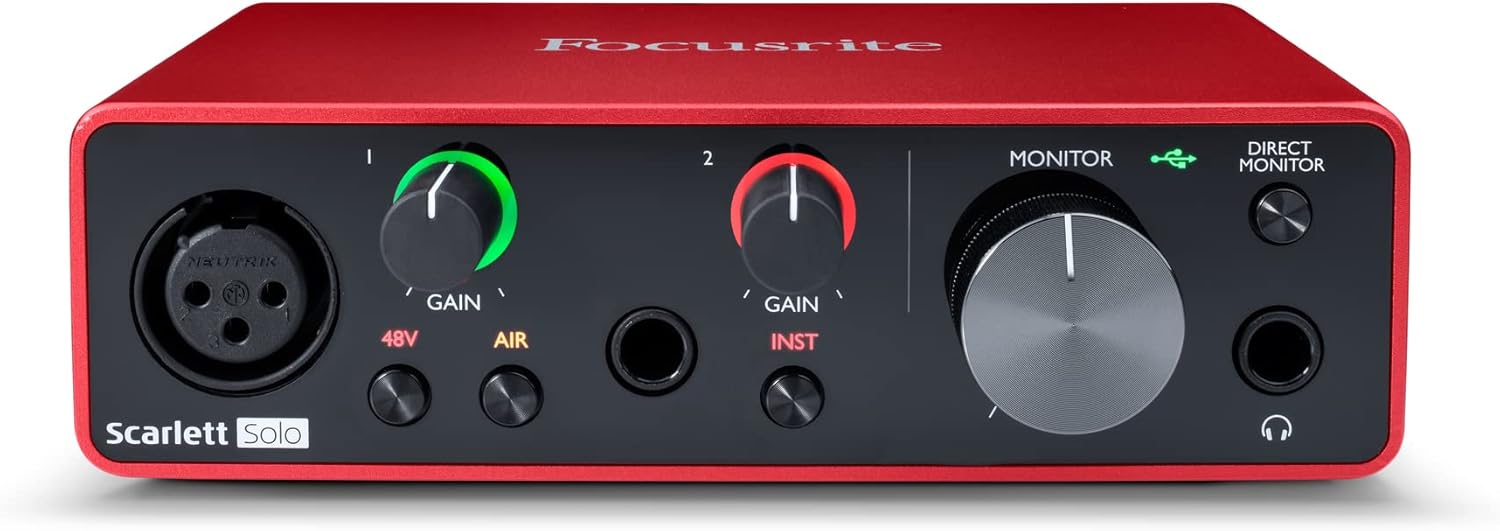
The primary job of an interface is to convert your analog voice signal into pristine digital audio. High-quality preamps, like the renowned Focusrite Scarlett series, provide clean gain without introducing hiss or noise. This ensures your voice sounds full, clear, and natural to everyone on the call, making a significant difference in how you are perceived. For other high-fidelity applications, our review of the best audio interfaces for audiophiles delves deeper into premium sound.
Portability and Power
If your setup moves between a home office and a co-working space, portability is key. Bus-powered interfaces draw energy from your computer’s USB port, requiring no bulky power adapter. The battery-operated option of the Zoom PodTrak P4 offers ultimate flexibility for recording or calling from anywhere, completely untethered from an outlet.
Final Thoughts
Investing in a dedicated audio interface is one of the most effective ways to elevate your virtual communication. For the solo professional seeking legendary plug-and-play simplicity and sound, the Focusrite Scarlett Solo 3rd Gen USB-C Audio remains a benchmark choice. Conversely, if your needs involve remote interviews, multiple hosts, or on-the-go recording, the versatile feature set of the Zoom PodTrak P4 Podcast Recorder with 4 XLR Mic provides an unparalleled all-in-one solution for professional Zoom calls and beyond.
Frequently Asked Questions
Do I need an audio interface for Zoom if I have a USB microphone?
A USB microphone has a basic built-in audio interface. A dedicated external interface typically offers superior microphone preamps, more connectivity options for multiple mics or instruments, and greater control over your audio signal. It is a recommended upgrade for consistent, professional-grade results.
Can I use these interfaces with other conferencing software like Teams or Google Meet?
Absolutely. Once configured as your computer’s default audio input device, these interfaces will work with any software that uses your system audio, including Microsoft Teams, Google Meet, Skype, and streaming platforms like Twitch or YouTube Live. The principles of clear audio apply universally.
How do I set up an audio interface for a Zoom call?
First, connect the interface to your computer via USB and attach your microphone and headphones. Then, within Zoom’s audio settings, select the interface as both your microphone and speaker. Enable direct monitoring on the interface if available, and perform a quick test call to adjust your microphone gain level. For Windows users, specific guidance can be found in our resource on the best audio interfaces for windows.
What is the advantage of a loopback feature for Zoom?
Loopback allows the audio playing from your computer (such as a video clip, music, or sound effect) to be routed back into your microphone output signal. This means you can share media with perfect audio quality during a Zoom presentation without relying on unreliable screen sharing for audio, creating a much more polished and professional broadcast.




Write Your Review
No reviews yet. Be the first to share your experience!