

Struggling with a headset mic that picks up every keyboard click and makes your voice sound distant? For PS4 gamers, clear communication is not just a luxury, it’s a tactical necessity. Whether you’re coordinating a raid with your squad or streaming your gameplay, your microphone quality can make or break the experience. This guide is crafted for PlayStation 4 players seeking a straightforward audio upgrade without complex setups.
We have evaluated the top USB microphones that offer plug-and-play compatibility with your PS4. From full streaming kits to compact, versatile options, you will find a model to match your setup and budget. For those planning an upgrade, our related guide on the best USB microphones for PS5 is also a valuable resource.
How to Choose Your PS4 USB Microphone
Prioritize Plug-and-Play Simplicity
Your PS4 should recognize a compatible USB microphone instantly. Look for models explicitly confirmed for PlayStation 4, as some computer mics may require additional drivers. A simple connection means you spend less time configuring and more time gaming.
Evaluate the Pickup Pattern
For most gamers, a cardioid pattern is ideal. It captures sound clearly from the front while minimizing background noise from your room. If you often game with friends in the same room, an omnidirectional model might be more suitable to pick up multiple voices.
Consider Your Physical Setup
<!–Think about your gaming station. Do you have desk space for a boom arm or a weighted stand? A compact mic with a flexible gooseneck or magnetic mount can be perfect for tight spaces. The right form factor ensures your mic stays securely in the optimal position.
For a broader look at options, explore our main category page for USB microphones.
Look for Useful Controls
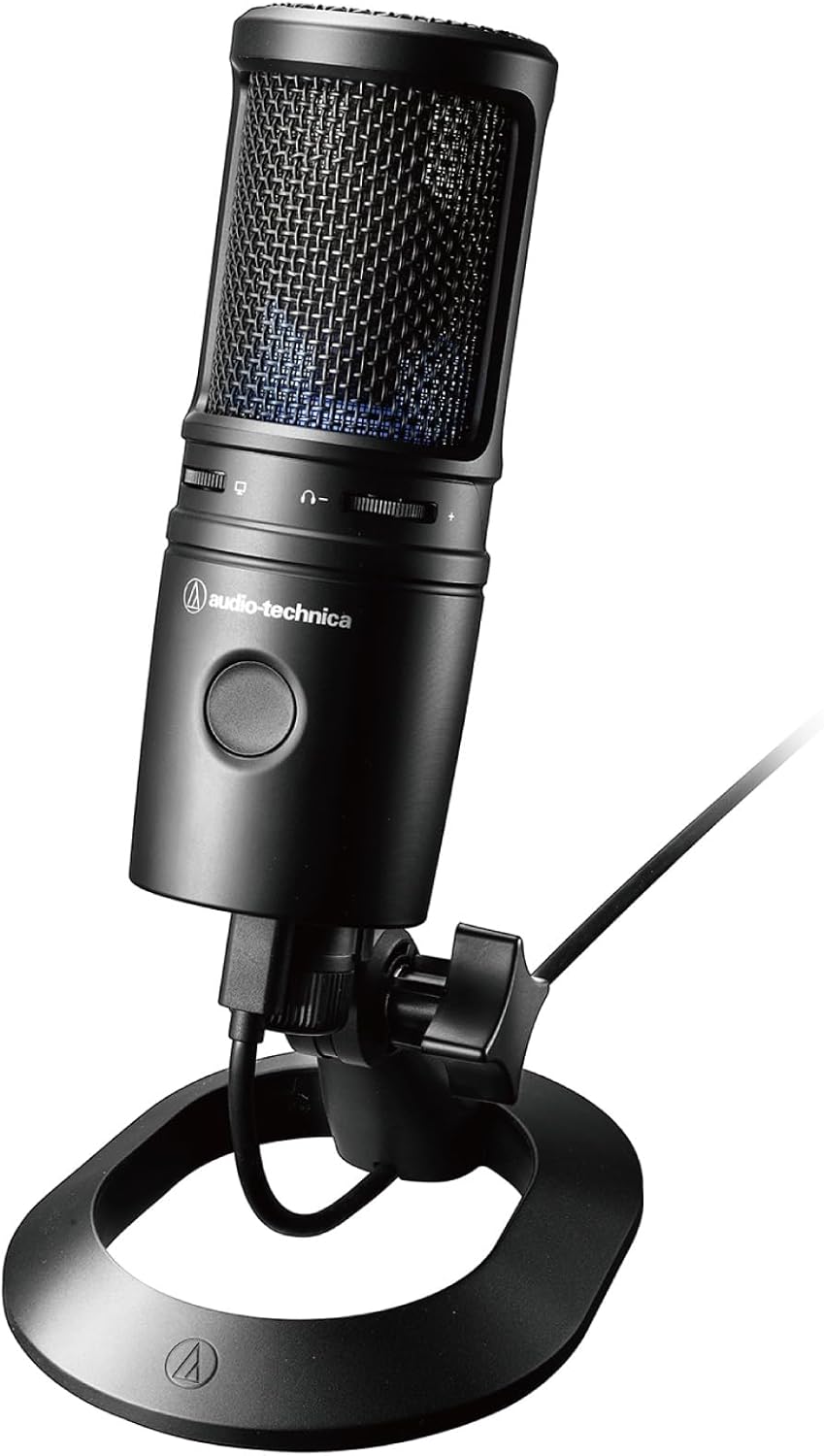
<!–A quick-tap mute button is essential for private conversations or moments of frustration. A physical gain or volume knob offers immediate adjustment without digging into console menus. These features put crucial audio controls at your fingertips.
Accessories like pop filters and shock mounts, detailed in our guide to mic accessories, can further refine your audio by reducing plosives and desk vibrations.
Final Thoughts
Upgrading your PS4 audio setup with a dedicated USB microphone is a game-changer for clarity and team coordination. For streamers and serious gamers seeking a professional-grade kit with a boom arm, the FIFINE AmpliGame A6T USB Gaming Microphone Kit is a stellar choice. If you need a versatile, space-saving solution perfect for laptop and PS4 use, the highly portable AIRHUG USB Microphone No Speaker with Magnetic mount offers impressive flexibility. Your perfect match depends on balancing audio performance with your specific gaming environment and needs.
Frequently Asked Questions
Do all USB microphones work with the PS4?
No, not all USB microphones are compatible. The PS4 supports USB audio class 1.0 devices. Most modern plug-and-play mics designed for computers will work, but it is always best to verify PlayStation 4 compatibility in the product description before purchasing. For a wider selection of compatible devices, check our list of the best USB microphones for laptops, as cross-compatibility is common.
What is the advantage of a USB microphone over a headset mic?
USB microphones typically use larger, higher-quality condenser capsules. This results in clearer, more natural-sounding voice reproduction with better sensitivity. They also allow you to use your preferred gaming headphones separately for audio, often providing superior comfort and sound quality for game audio.
Can I use a USB microphone for singing games on PS4?
Yes, absolutely. Some USB microphones, like those designed for karaoke or music games, are optimized for this purpose. They feature wide dynamic ranges to accurately capture everything from whispers to shouts, making them perfect for titles like Rock Band or Let’s Sing on your PlayStation 4.
How do I set up my USB microphone on the PS4?
Connect the microphone to an open USB port on your PS4. Navigate to ‘Settings’ > ‘Devices’ > ‘Audio Devices’. Set the ‘Input Device’ to your connected USB microphone. You can then adjust the input volume level to ensure your voice is clear without peaking or distortion.




Write Your Review
No reviews yet. Be the first to share your experience!